By Rendero | Visual guide updated 4 September 2026
Using Rendero
- What to bring
- A PNG, JPG or WebP screenshot or render from SketchUp, Revit or Rhino. Set the camera in your modeling application before exporting the image.
- What you can do
- Upload the view in Rendero's browser app. Use prompts and region selection, with references where your engine supports them.
- What to check
- The result is an image; your model file stays unchanged. Check roof edges, openings and levels against the saved view.
Compare neutral and shaded source-view examples
How credits work
Free accounts receive 50 starting credits once at signup. These credits do not refill each month.
Rendering charges vary with the model, resolution and, for some engines, processing time. Upscaling uses additional credits. The app shows your remaining balance.
Allow for retries and edits when planning a project. A credit balance does not represent a fixed number of finished images.
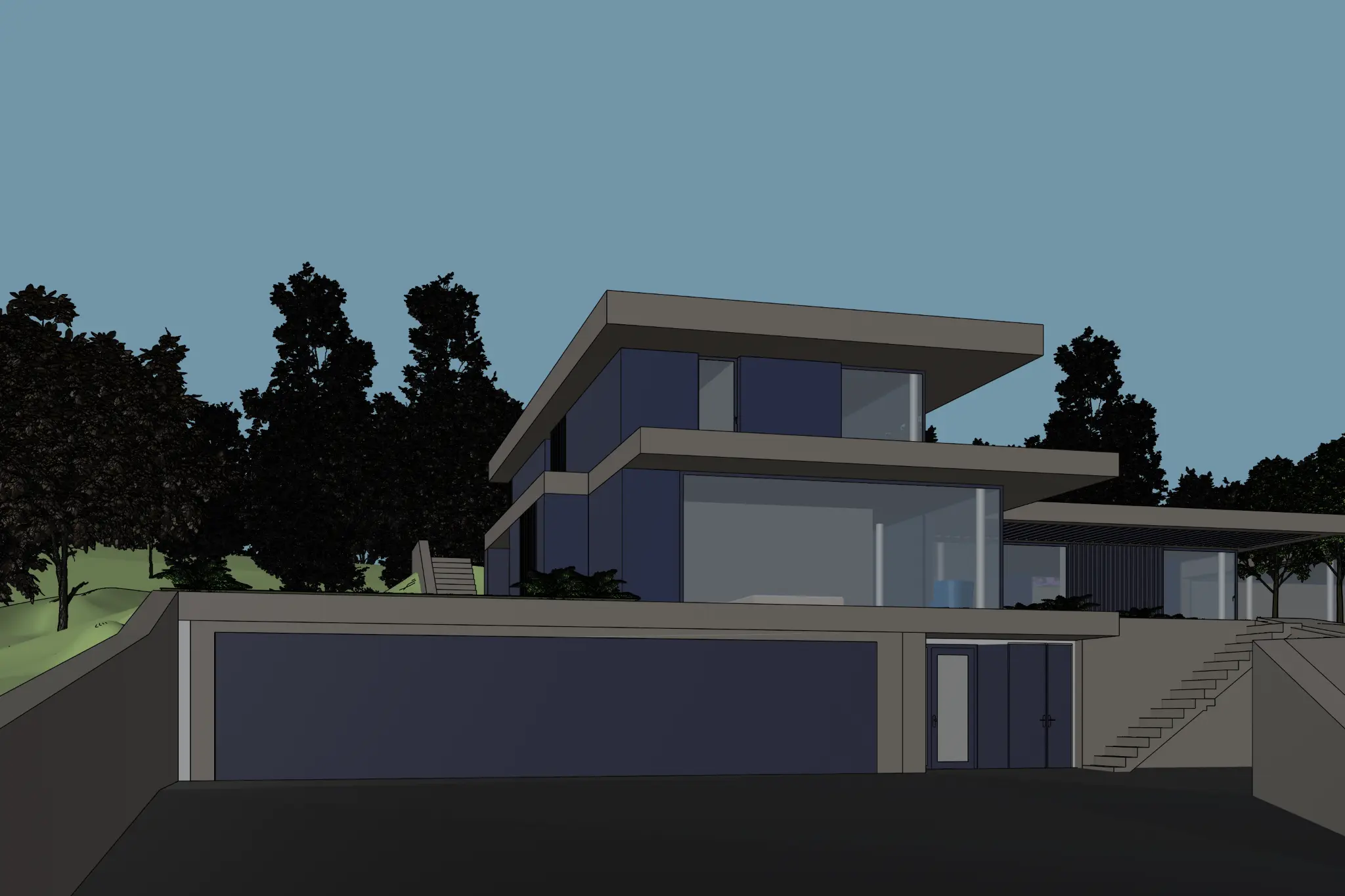
Source view
The shaded house above is a published model-view example.
One material study
Keep the view fixed; change one facade finish.
Original run
The model file and a matching generation record are not published here.
Four checkpoints in the model view
Use the roof, glazing and stairs as reference points before exporting. A realistic-looking output can still change them.
Roof + terraces
Trace the long slab edges, overhangs and corners.
Window openings
Keep the broad glazing, upper windows and entry uncropped.
Dark boundaries
The foreground is dark. Improve the shading if an edge is unreadable.
Stairs + context
Check stair continuity; decide whether the planting is fixed or exploratory.
From model view to review
- Save a sceneRestore the same camera later.
- Export an imagePNG or JPEG; retain the crop.
- Test one finishRecord model and settings.
- Compare edgesAccept, refine or remodel.
SketchUp for Desktop: File > Export > 2D Graphic > PNG or JPEG. Use Options for dimensions. These steps follow SketchUp's export documentation; other editions have different controls.
- Hide selection highlights, guides and temporary objects.
- Reopen the export: check the complete silhouette, eaves and stairs.
- Use dimensions accepted by the selected model; check the actual output detail.
A focused material instruction
Create an exterior material study from this view. Use warm timber cladding on opaque facade surfaces, clear glazing and soft daylight. Retain the camera, roof overhangs, terrace edges, window openings and stairs. Keep planting away from the entrance.
This is a suggested test, not a recovered demo prompt. An instruction to retain geometry is not a guarantee.Keep weather and references fixed for the first comparison. If you add a reference, specify finish, color or texture; see the reference-image guide.
Choose the next action
Accept for discussion
The finish answers the brief and key edges still read correctly. Label it an AI-assisted concept.
Refine a region
One finish or planting area needs work. Inspect the selection boundary and surroundings.
Return to SketchUp
A stair, window or junction is missing or unclear. Resolve it in the model or export.
Compare source and output at the same displayed size. Keep the model and drawings as the authority for dimensions. See the side-by-side clay example and selection review.
Keep a useful run record
Input + scene + dimensions / model + version / prompt + references / exposed influence or seed / output + review decision.
Measure on your runActual generation time, credits and rejected attempts. Use the render-review notes template.
SketchUp also has its own AI Render feature. This guide covers the separate image-upload workflow into Rendero; no Rendero plugin is needed. Keep conventional rendering for controlled scene lighting, material specifications and technical deliverables.
For measured selection-mask results, see the 50-image selection benchmark. It tests masks, not final render quality.
Frequently asked questions
How do I export a SketchUp image for Rendero?
In SketchUp for Desktop, choose File > Export > 2D Graphic, select PNG or JPEG and use Options to choose the image dimensions. Reopen the export and check the camera, silhouette, openings and shading before uploading it as a base image. Other SketchUp editions have different export controls.
Do I need a SketchUp plugin to use Rendero?
No Rendero plugin is required for the exported-image workflow. Upload a view from your model to the browser-based app. SketchUp also has its own AI Render feature; compare the available workflows against the task you need to complete.
Will the AI output preserve every part of my SketchUp model?
No prompt or base image guarantees exact preservation. Compare the output with the source, especially roof edges, window divisions, stairs and clearances. Keep the model and drawings as the authority for dimensions and construction details.
Which settings should I record for a useful comparison?
Record the input image and dimensions, named model scene, prompt, AI model/version, output size, references and any influence or seed controls exposed by the selected model. Keep rejected attempts and actual credit use alongside the accepted result.