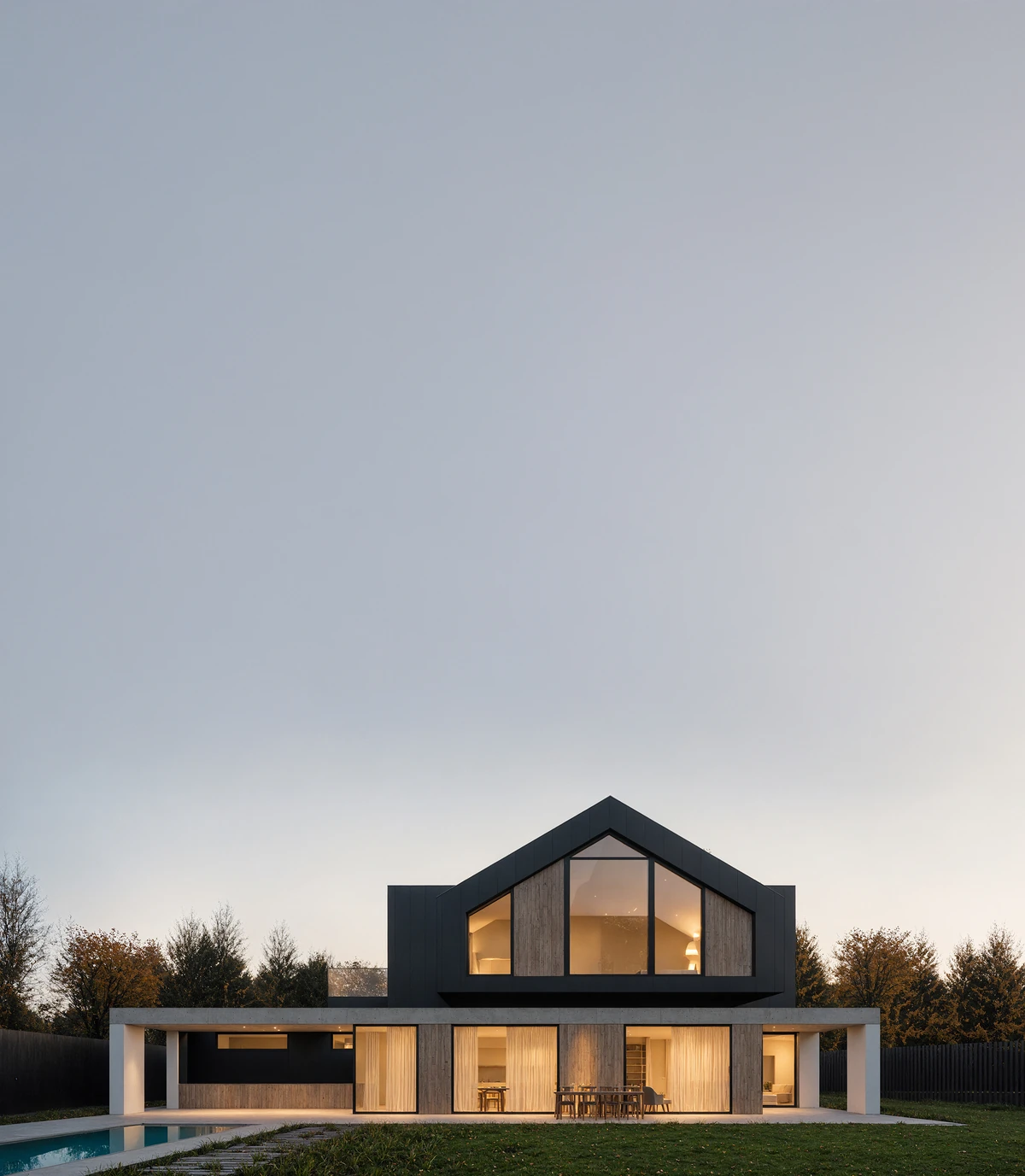
By Rendero | Editorial guide updated 8 September 2026
Why AI rendering can feel unpredictable
When asked to make a render more realistic, an AI model may also change parts of the architecture that were already correct.
A window can become larger. A facade grid can shift. A roof edge can disappear. Vegetation may cover the entrance, furniture may change scale, and materials may spread into areas where they do not belong.
These changes can make an image visually attractive while making the architecture less accurate.
Control starts with the right base image
The input image defines how much the model needs to invent.
A clear clay render, viewport image, material preview, model view, reference image, or mask gives the AI useful spatial information. The more clearly the architecture is communicated, the less room there is for misunderstanding.
Before rendering, check that the base image already contains:
- The correct camera and composition
- Readable architectural geometry
- Clear openings and facade divisions
- Understandable depth and scale
- A consistent lighting direction
- Enough resolution for important details
Use references to communicate visual intent
Prompts describe an idea with words. Reference images communicate atmosphere, materials, lighting, and visual character more directly.
A reference can help define warm evening light, natural stone, soft landscaping, editorial photography, restrained interiors, or a specific level of realism.
Write prompts as design instructions
Give the prompt the priorities you will use to review the result.
Instead of writing: "Make this image more realistic and cinematic."
A proposed instruction to test: "Preserve the existing camera, geometry, facade divisions, and window proportions. Improve the realism of the timber and concrete materials. Add soft overcast daylight and subtle vegetation without covering the entrance."
A useful prompt should explain:
- What must stay unchanged
- What should be improved
- Which materials or areas matter most
- What kind of atmosphere is intended
- What the model must not add or redesign
Check the selected boundary
Even a detailed prompt may still affect the entire image. Select the area you intend to edit, then check whether its boundary crosses neighboring materials.
The facade, windows, roof, sky, greenery, furniture and pavement may need different instructions. Available regional controls depend on the selected model.
For a facade material study, compare the window corners, frame widths and joint beneath the roof with the source. If those details move, reject or refine the edit.
Keeping edits focused on selected areas helps retain the rest of the render, so each iteration has a clear purpose. Check the result for unintended changes.
Work from large decisions to small details
Trying to solve the entire image at once often creates unnecessary variation.
A more controlled process moves gradually:
- Establish the composition and overall atmosphere.
- Refine the main architectural materials.
- Adjust landscape, furniture, and secondary elements.
- Improve lighting and local details.
- Correct only the remaining problematic areas.
This creates a visible decision history. It is easier to compare versions, explain changes to colleagues, and return to an earlier direction when needed.
Iterate locally instead of regenerating everything
When only one part of an image is wrong, there is no reason to reopen every other decision.
Global regeneration can fix one problem while creating several new ones. A corrected facade may produce different windows. Improved vegetation may change the paving. Better lighting may alter the shape of the roof.
Local iteration helps preserve approved parts of the image. Compare each result with the approved version before accepting it.
When comparing models, keep the source and intended edit consistent. Check the engines and resolutions available in your account, and record differences in settings. The model-selection guide explains what a useful comparison should record.
Review the result as an architect
AI output should not be approved only because it looks realistic.
Before using an image, check:
- Are the openings still in the correct position?
- Are the dimensions and proportions believable?
- Do materials connect logically?
- Is the entrance still readable?
- Does the furniture match the scale of the space?
- Is the lighting consistent with the architecture?
- Has the AI added anything that changes the design?
Save the source, prompt, model, settings and output with an acceptance or rejection reason. Use the illustrated regional-edit guide to inspect the selection and its surroundings.